



Ultimate Kinemaster 2026
Hey Guys, video editing newbie or pro on the go.! If you’re looking for the best video editor app that’s super easy to use on your phone, Kinemaster is your go-to. It’s like having a mini movie studio in your pocket – perfect for making Reels, Shorts, vlogs or even full movies. In 2026, it’s packed with fresh updates like AI magic and vertical editing mode, making it simpler than ever. No fancy computers needed.! Let’s dive into why millions love it, what’s new this year and how you can start creating awesome videos today. This guide is all about keeping things simple, fun and packed with real tips from users.
What is Kinemaster.? The Easy Video Editing App Everyone’s Talking About
Kinemaster is a free video editor app for Android and iOS that’s blown up with over 700 million downloads. It’s designed for anyone – from kids making fun clips to creators pumping out YouTube content. Unlike clunky desktop software, it’s mobile-first, so you edit right on your phone or tablet. Think multi-layer editing, cool effects and pro audio tools but without the headache.
Why’s it so popular.? It’s beginner-friendly yet powerful. You can trim clips frame-by-frame, add stickers, text or even green screen effects (that’s chroma key for the techy folks). Plus, it exports in 4K at 60 FPS – high-quality stuff for social media. Users on X rave about how it turns basic phone videos into polished gems. One creator shared how they made “outsider art” style videos with the classic Kinemaster watermark, showing its quirky charm for casual edits.
In 2026, it’s still topping charts as the best video editor for Android and iOS, beating out apps like CapCut for its intuitive tools.
Fresh 2026 Updates: New Features That Make Editing a Breeze
Kinemaster isn’t sitting still – the 2026 version (like v8.0) brings game-changing stuff to keep your content fresh. Here’s the scoop on the latest:
· Vertical UI Support: Edit in portrait mode.! Perfect for TikTok or Instagram Reels. Just rotate your phone and the interface flips. No more awkward landscape-only editing.
· AI Tools for Quick Wins: Auto Captions add subtitles from your audio in seconds. Text-to-Speech turns words into voiceovers. AI Voice tweaks sounds to make them unique. New ones like AI Auto Cut detects scenes, Smart Color Adjustment fixes lighting and Cinematic Filters give movie-like vibes.
· Speed Control & Effects: Slow-mo down to 1/8x or speed up to 16x. Add transitions, animations, audio filters and volume tweaks. Chroma Key for green screens, Magic Remover for backgrounds and AI Style for funky filters.
· Templates & Assets: Over 8,000 stickers, fonts, effects from the Asset Store. Share templates or use cloud storage to collab via WhatsApp or Snapchat.
· Pro Export Options: 4K UHD, FHD, even GIFs. Premium removes watermarks and ads for that clean look.
Users on social media are buzzing about these. One X post highlighted using Kinemaster for quick sound design paired with other tools like DaVinci Resolve. Another shared frustration with the premium paywall but praised its ease for memes and edits.
How to Use Kinemaster: Simple Step-by-Step Tutorial for Beginners
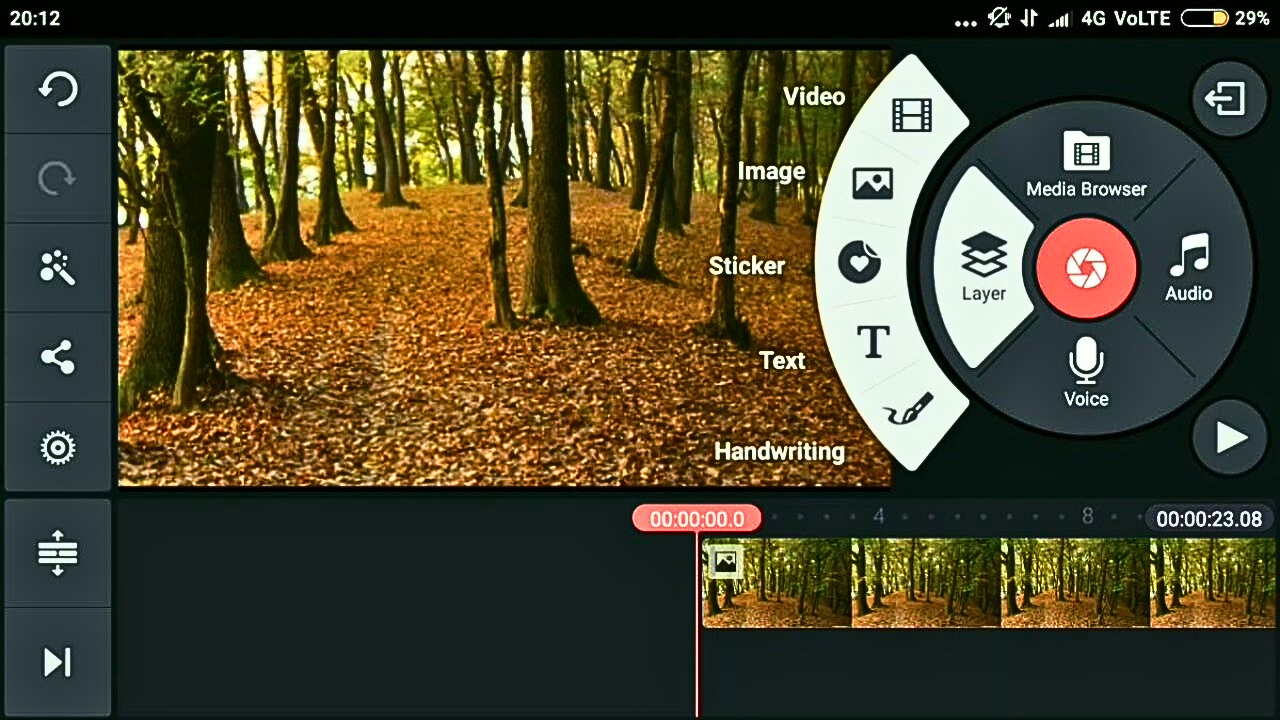
Getting started is a snap – no pro skills needed. Download from Google Play or App Store (search “Kinemaster free download”). Here’s a quick guide:
1. Open and Create a Project: Tap “New Project,” pick aspect ratio (like 9:16 for vertical videos).
2. Import Media: Add videos, photos or audio from your gallery. Drag to the timeline.
3. Edit Basics: Trim clips by pinching, add layers for text or stickers. Use blending modes for cool overlays.
4. Add Effects: Hit the effects button for transitions, speed changes or chroma key. Try AI Auto Captions for subs.
5. Audio Magic: Record voiceovers, adjust pitch or add reverb. Volume envelope for fade-ins/outs.
6. Export: Choose resolution (up to 4K), hit export. Premium users skip the watermark.
Real users swear by this flow. One tip from X: Use Kinemaster for visuals and pair with GarageBand for audio on mobile. Another: Start simple – it’s great for phone edits before jumping to PC tools like Premiere Pro.
Top Tips & Tricks from Real Users to Boost Your Edits
From X chats and forums, here’s what creators are doing in 2026:
· Mobile-Only Workflow: Edit on the fly. One user makes full timelines in 2 hours, focusing on presets for speed.
· Piracy vs Premium Debate: Some crack it for free pro features but official Premium unlocks assets and no ads. Worth it for serious creators.
· Combine Tools: Use with AI like ChatGPT for scripts or ElevenLabs for voices.
· For Memes & Shorts: Watermark adds retro vibe but remove for pro looks. Great for quick cuts.
· Beginner Hack: Practice with free version first. Users say it’s easier than CapCut for layers.
READ MORE: Google Gemini Personal Intelligence 2026: Your AI Buddy That Knows You Better Than Anyone.!
Pros, Cons and Alternatives
Pros:
- Free to start, easy interface.
- AI features save time.
- High-quality exports.
- Huge asset library.
Cons:
- Watermark on free version.
- Premium costs (but includes extras like Spring app).
- Can lag on older phones.
Alternatives.? CapCut for TikTok focus, InShot for simple social edits. But Kinemaster wins for depth.
Wrap Up: Why Kinemaster is Your 2026 Video Editing Buddy
Kinemaster makes video editing fun and fast – no wonder it’s a top search for “best free video editor app.” With 2026’s AI boosts and vertical mode, your content will pop on any platform. Download it, try a simple edit and watch your views climb. Got tips.? Share in the comments.! Stay creative, folks.

And the day came when the risk to remain tight in a bud was more painful than the risk.
- Labbayak Technologies